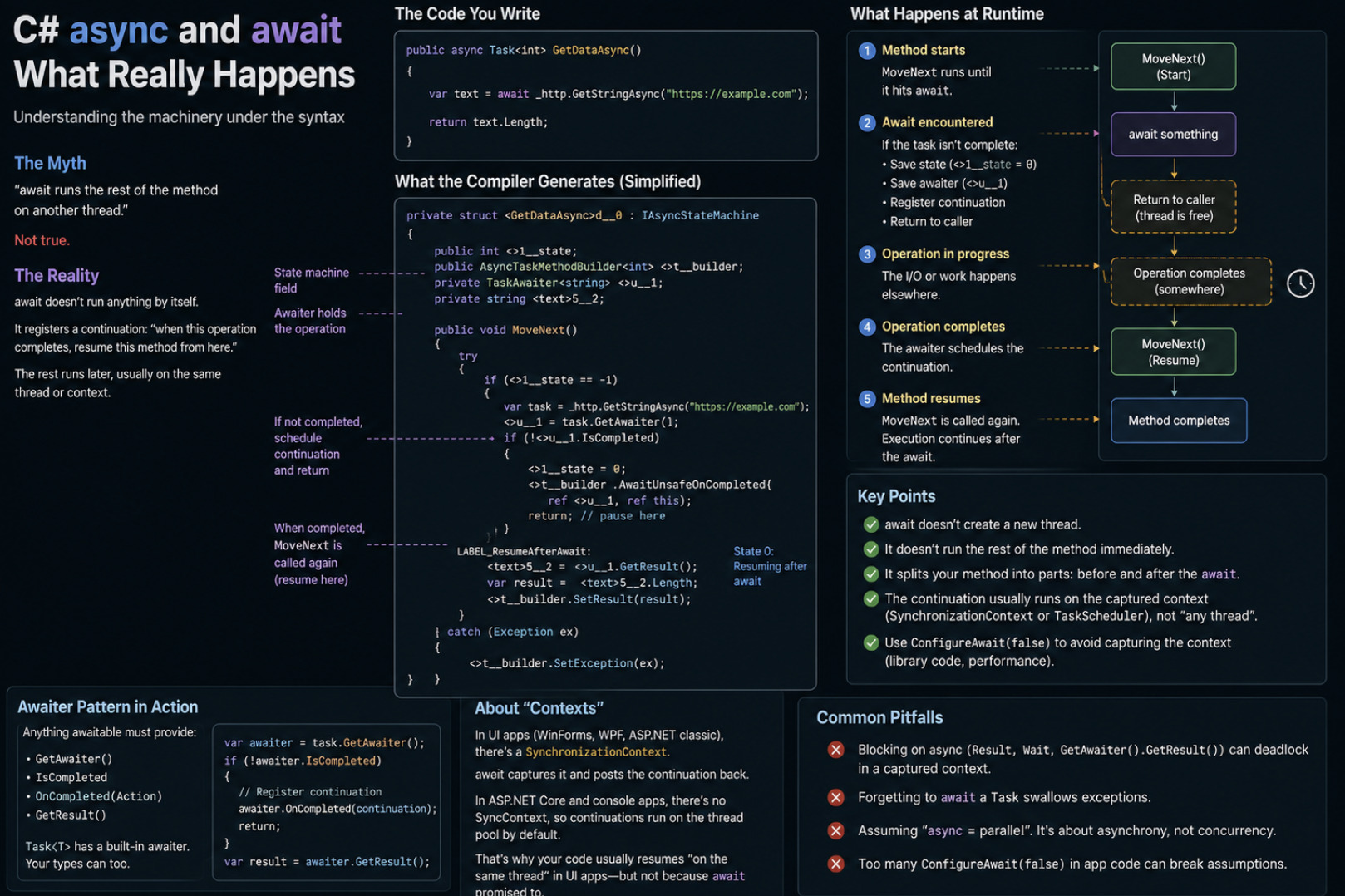
prefers-reduced-motion is a CSS media feature that tells a page whether the user has asked their operating system to minimise non-essential motion. It has two values: no-preference and reduce. The common mistake is to treat reduce as "delete every animation". The better reading is "remove the motion that moves things across the screen, and keep the motion that communicates". A card that slides in from the side can fade in instead. A parallax background can stay still. A button can still change colour when pressed.
Implemented this way, reduced motion means making a different design decision, not breaking the interface. The rest of this guide covers who uses the setting, what kinds of motion cause problems, how to write the CSS and JavaScript, how to handle features that made motion much easier in 2025 and 2026, and what reduced motion does and does not satisfy under the accessibility guidelines.

Who turns on reduced motion, and why
The setting exists in every major operating system under a slightly different name. On macOS and iOS it is Reduce motion in the Accessibility settings. On Windows it is the Animation effects switch under Accessibility's visual effects. On Android it is Remove animations. When the user turns it on, browsers expose it to the page as prefers-reduced-motion: reduce.
The main medical reason is vestibular disorders, conditions affecting the inner-ear and brain systems that handle balance and spatial orientation. For people with these conditions, large on-screen motion can cause dizziness, nausea, headaches or disorientation. The problem is less rare than it sounds. A widely cited US study, based on national health survey data published in 2009, estimated that roughly a third of adults aged 40 and over had experienced some form of vestibular dysfunction. Not all of them are sensitive to screen motion, but that is a large potential audience.
Other people turn on reduced motion for less clinical reasons: migraine, concussion recovery, attention difficulties, or simply a dislike of interfaces that won't sit still. Developers should not try to guess why. The setting is a stated preference, and respecting it does not require knowing the reason.
Which motion causes problems
Not all animation is equal. Reduced-motion design works best when you distinguish between kinds of movement.
Motion to reduce or remove
Large movement across the screen: elements that slide in from the edge, fly across the page, or move a significant distance.
Scaling and zooming: especially zoom transitions that grow an element to fill the screen, which recreate the feeling of moving through space.
Parallax: layers moving at different speeds while scrolling. This is one of the most reported triggers, because it breaks the relationship between the user's input and what they see.
Spinning and rotation: continuous or large rotations.
Scroll hijacking: interfaces that take control of scrolling, accelerate it, or snap it in ways the user did not initiate.
Autoplaying motion: background videos, animated banners, looping GIFs and carousels that move without any input from the user.
Motion that can usually stay
Opacity changes: fading in and out moves nothing through space.
Colour changes: hover states, focus outlines and pressed states.
Small, fast feedback: a slight change in a button's shadow, or a small scale change of a few percent on press.
Loading indicators: users need to know something is happening. A static indicator can be less informative, so a subtle version, such as a pulse, is usually better than none.
There is no universal line between these. The guiding question is whether the motion helps the user understand what happened, or is decorative, and whether it moves something through space. Informative motion can often be reduced, while decorative, large movement is the first thing to remove.
The CSS patterns
Start from no motion, then add it
The most robust pattern inverts the usual approach. Write the static version as the default, then add motion only when the user has not asked for less:
css
.card {
  opacity: 1;
}

@media (prefers-reduced-motion: no-preference) {
  .card {
    animation: slide-up 400ms ease-out both;
  }
}

@keyframes slide-up {
  from { opacity: 0; transform: translateY(24px); }
  to   { opacity: 1; transform: translateY(0); }
}
Motion becomes an enhancement. If the media feature is unsupported, or a rule fails, the user gets the stable version rather than a broken one.
Replace, rather than remove
When motion carries meaning, such as a new element arriving or a panel opening, keep the meaning and change the technique. Swap the movement for a fade:
css
@media (prefers-reduced-motion: reduce) {
  .card {
    animation-name: fade-in;
  }
}

@keyframes fade-in {
  from { opacity: 0; }
  to   { opacity: 1; }
}
The user still sees that something appeared. They just don't see it travel.
Put motion in design tokens
In systems with many components, defining motion as custom properties keeps behaviour consistent and makes the reduced-motion version a single change:
css
:root {
  --motion-duration: 300ms;
  --motion-distance: 24px;
}

@media (prefers-reduced-motion: reduce) {
  :root {
    --motion-duration: 1ms;
    --motion-distance: 0px;
  }
}

.drawer {
  transition: transform var(--motion-duration) ease;
}
Components that use these tokens automatically inherit the reduced version, and new components written later will not forget it.
The global reset, and its limits
A common snippet reduces all animations and transitions site-wide:
css
@media (prefers-reduced-motion: reduce) {
  *, *::before, *::after {
    animation-duration: 0.01ms !important;
    animation-iteration-count: 1 !important;
    transition-duration: 0.01ms !important;
    scroll-behavior: auto !important;
  }
}
It uses a near-zero duration rather than zero on purpose. Some scripts wait for animationend or transitionend events, and very short durations make sure those events still fire. It is a useful safety net, especially for sites with third-party components you do not control.
It is still a blunt tool. It flattens informative motion along with harmful motion, it can make some interfaces feel abrupt or broken, and it relies on !important, which is exactly what careful stylesheets try to avoid. Use it as a fallback beneath deliberate design decisions, not instead of them.
Smooth scrolling
scroll-behavior: smooth on the document is a frequent oversight. Clicking an in-page link then scrolls the entire page in an animated way. Gate it:
css
@media (prefers-reduced-motion: no-preference) {
  html {
    scroll-behavior: smooth;
  }
}
Autoplaying images and video
CSS cannot pause an animated GIF, but HTML can serve a different file depending on the preference. The <picture> element accepts media queries on its sources:
html
<picture>
  <source srcset="hero-still.jpg" media="(prefers-reduced-motion: reduce)">
  <img src="hero-animated.gif" alt="…">
</picture>
For video, avoid autoplay when the preference is set. Controlling that from JavaScript, as below, is more reliable than hiding the element.
Reduced motion in JavaScript
Animation libraries, canvas effects and scroll-triggered effects run in JavaScript, where the media query is available through matchMedia:
js
const reduceMotion = window.matchMedia('(prefers-reduced-motion: reduce)');

function applyMotionPreference() {
  document.documentElement.dataset.motion =
    reduceMotion.matches ? 'reduced' : 'full';
}

applyMotionPreference();
reduceMotion.addEventListener('change', applyMotionPreference);
Listening for change matters. The user can switch the setting while the page is open, and the page should react without a reload. Most mainstream animation libraries provide their own reduced-motion option. It is worth checking that it is enabled rather than assuming it is.

The newer features that made motion cheap
Two recent additions to CSS make motion much easier to produce, and both need reduced-motion handling.
View transitions
The View Transitions API animates between states of a page. By default it produces a cross-fade, and developers often customise it with slides and morphs. Same-document view transitions reached Baseline in October 2025 when Firefox 144 shipped them, joining Chrome and Safari. Cross-document transitions between separate pages work in Chromium and Safari but not yet in Firefox.
The default cross-fade is generally mild. Custom transitions that slide or zoom whole pages are exactly the kind of large motion reduced-motion users want to avoid. The simplest approach is to disable the animation of the transition pseudo-elements when the preference is set:
css
@media (prefers-reduced-motion: reduce) {
  ::view-transition-group(*),
  ::view-transition-old(*),
  ::view-transition-new(*) {
    animation: none;
  }
}
The state change still happens, instantly. Alternatively, keep the cross-fade and remove only custom movement.
Scroll-driven animations
animation-timeline: scroll() and view() link animation progress to scroll position rather than time. They make parallax effects, progress bars and reveal-on-scroll effects possible without JavaScript. They are supported in Chromium and, since Safari 26, in Safari. Firefox has been working towards shipping them, so check current support before relying on them.
Scroll-driven effects deserve particular care, because scroll-linked movement is one of the most common vestibular triggers. The right default is to wrap the whole effect in a no-preference query and make sure the content is fully visible and in its final position without it. A reveal effect that leaves content invisible when animation is disabled is a bug, not a reduced-motion version.
Where motion is densest, entertainment interfaces
The preference is tested hardest in interfaces built for entertainment, because motion is central to how they are designed. Streaming homepages autoplay trailers when a tile gets focus. Game launchers animate their backgrounds and loop gameplay clips behind menus. Casino-style game lobbies are among the most motion-heavy interfaces on the web. The Polish-language Crazy Tower kasyno homepage, organised around a tower motif and tiled with thumbnails for slot, live-dealer and instant games, is typical of a genre in which spinning reels, animated multipliers and celebration effects are part of the product itself. Even there, the reduced-motion question splits into two different engineering problems. The lobby, the navigation and the promotional banners belong to the host site, and its own stylesheet can gate them with the patterns above. The games are usually embedded from third-party studios in iframes. The preference is exposed to each embedded document, so the game can read it, but the host's CSS cannot reach into another origin's content to apply it. Whether a spinning animation is reduced depends on the studio that built the game. The same boundary applies to embedded video players, advertising and third-party widgets everywhere.
For designers of motion-heavy products, the lesson reaches beyond games. Reduced motion is an easier promise to keep when motion is designed in-house, and a harder one when the page is an assembly of other people's components. Before promising a reduced-motion experience, check which parts of the page you actually control.
What the accessibility guidelines require
It helps to be precise here, because reduced motion is often confused with compliance.
WCAG 2.3.3, Animation from Interactions, covers motion triggered by user interaction, such as scroll effects and transitions after a click. It requires that such animation can be disabled unless it is essential. It is a Level AAA criterion, which most organisations do not formally target, but respecting prefers-reduced-motion is the most direct way to meet it.
WCAG 2.2.2, Pause, Stop, Hide, is Level A, the baseline required by most accessibility laws and standards. It covers content that starts moving automatically, lasts longer than five seconds and appears alongside other content, such as carousels, animated banners and background video. It requires a mechanism for the user to pause, stop or hide it. The media query alone does not satisfy this criterion. A user who has not changed their system setting, or who does not know it exists, still needs a visible pause control.
WCAG 2.3.1, Three Flashes or Below Threshold, also Level A, prohibits content that flashes more than three times per second above certain thresholds. Flashing can trigger seizures in people with photosensitive epilepsy, and this rule applies whatever motion preference the user has set.
In practice: honour prefers-reduced-motion for interaction motion, add visible pause controls for autoplaying motion, and never flash.
Testing it
You don't need to change your operating system to test reduced motion.
Chrome and Edge DevTools can emulate the media feature from the Rendering panel, so you can switch between
reduceandno-preferenceon a live page.Firefox can be forced into reduced motion through its configuration settings, which is useful for checking Firefox-specific behaviour.
Playwright and similar browser automation tools can emulate the preference in automated tests. That makes it possible to capture reduced-motion screenshots and include them in visual regression testing.
The most useful test is not whether the animation stops, but whether the reduced version still makes sense. Check that every element that normally animates in is visible, that state changes are still understandable without movement, and that nothing waiting on an animation event is stuck.
Motion written by AI assistants
One final practical point. AI coding tools readily add animation: ask for "a polished landing page" and the output often includes fades, slide-ins, hover lifts and scroll reveals. Reduced-motion handling is included less reliably. If you prompt an assistant to add animation, ask for the no-preference pattern explicitly, together with motion tokens and a check that content stays visible without animation. It is a one-line addition to a prompt, and it prevents the most common failure: a reveal effect that leaves content invisible for exactly the users who turned animation off.
Motion is a powerful part of interface design. It shows where things came from, what changed, and what responded to your input. prefers-reduced-motion does not ask designers to give that up. It asks them to decide which motion carries meaning, and to find another way to deliver that meaning to the people who asked for stillness.